Lorex Camera Blinking Red Light? Easy Troubleshooting Guide
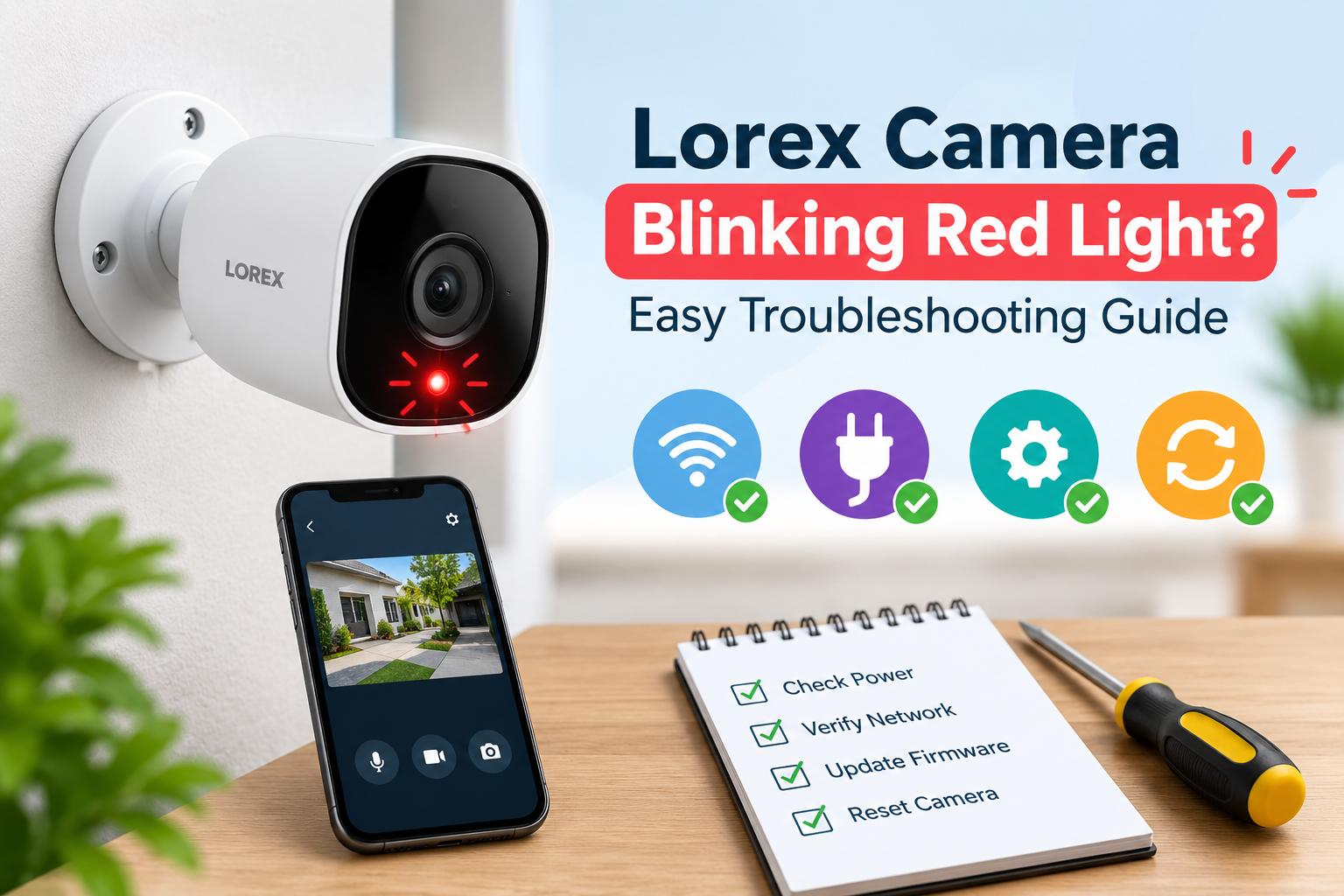
If your Lorex Camera Blinking Red Light issue is preventing the camera from connecting or working properly, the light may indicate a power, network, setup, or connection problem. The exact meaning of a red blinking light can vary by Lorex camera model, so check your model’s manual for the specific LED behavior.
On this page
Table of Contents
On this page
Table of Contents
This guide explains common reasons for a Lorex camera blinking red light and the steps you can try to restore the connection.
Why Is My Lorex Camera Blinking Red Light?
A blinking red light can occur when the camera is starting up, trying to establish a connection, experiencing a network problem, or has not completed the setup process. Before troubleshooting, make sure the camera is receiving stable power.
Common causes include:
- Unstable or insufficient power
- Wi-Fi connection problems
- Incorrect Wi-Fi credentials
- Camera not properly connected to the network
- Camera being too far from the router
- Setup not completed correctly
- Temporary software or connection issues
- A required reset or reconfiguration
1. Check the Camera Power
- Start by checking the camera’s power connection. Make sure the power adapter is securely connected to both the camera and the electrical outlet.
- If possible, try another compatible power outlet. Avoid using a damaged cable or adapter. After reconnecting the power, allow the camera enough time to start up and observe the LED.
- If the red light continues blinking, move on to the network checks.
2. Check Your Wi-Fi Connection
For a wireless Lorex camera, a weak or unstable Wi-Fi connection can prevent the camera from connecting properly.
Check that your router is working and that other devices can access the internet. If the camera is far from the router, temporarily move it closer and check whether the LED behavior changes.
Also verify that you are using the correct Wi-Fi network and password.
3. Restart the Camera and Router
A simple restart can resolve temporary connection problems.
- First, disconnect the Lorex camera from its power source. Restart your Wi-Fi router and wait until the router has finished starting up. Then reconnect the camera and allow it to boot.
- After the restart, check whether the Lorex Camera Blinking Red Light issue has been resolved.
4. Recheck the Lorex Camera Setup
- If you recently installed the camera, review the lorex camera setup process. Make sure the camera was added to the correct Lorex app or compatible recorder and that the required network information was entered correctly.
- During setup, keep the camera reasonably close to the router if it uses Wi-Fi. Follow the instructions for your exact Lorex model because setup steps and LED meanings can differ between devices.
- If the camera was previously connected but is no longer available in the app, you may need to reconnect it to your network.
5. Check the Wi-Fi Password
- An incorrect Wi-Fi password can prevent a wireless camera from joining the network.
- If you recently changed your router name or Wi-Fi password, the camera may still be using the old credentials. In that situation, update the camera’s network settings through the supported Lorex app or perform the model-specific setup process again.
- Avoid repeatedly entering an incorrect password, as this can make troubleshooting more difficult.
6. Move the Camera Closer to the Router
- Distance and physical obstacles can affect wireless connectivity. Thick walls, floors, metal objects, and other electronic devices may interfere with the signal.
- For testing, place the camera closer to the router and restart it. If the camera connects normally in the new location, the original placement may have a weak Wi-Fi signal.
- You can then choose a more suitable location or improve the network coverage.
7. Reset the Lorex Camera
- If the previous steps do not work, a factory reset may help. However, the reset procedure varies by Lorex camera model.
- Locate the reset button or reset option specified in your camera’s documentation. Follow the model-specific instructions rather than assuming that every Lorex camera requires the same reset time.
- A factory reset can erase existing network or configuration settings, so you may need to complete the lorex camera setup again afterward.
Comments
0 comments
No comments yet. Be the first to comment.
Related Articles
Oct 14, 2026
How to Fix Common Canon TS3722 Setup Problems?
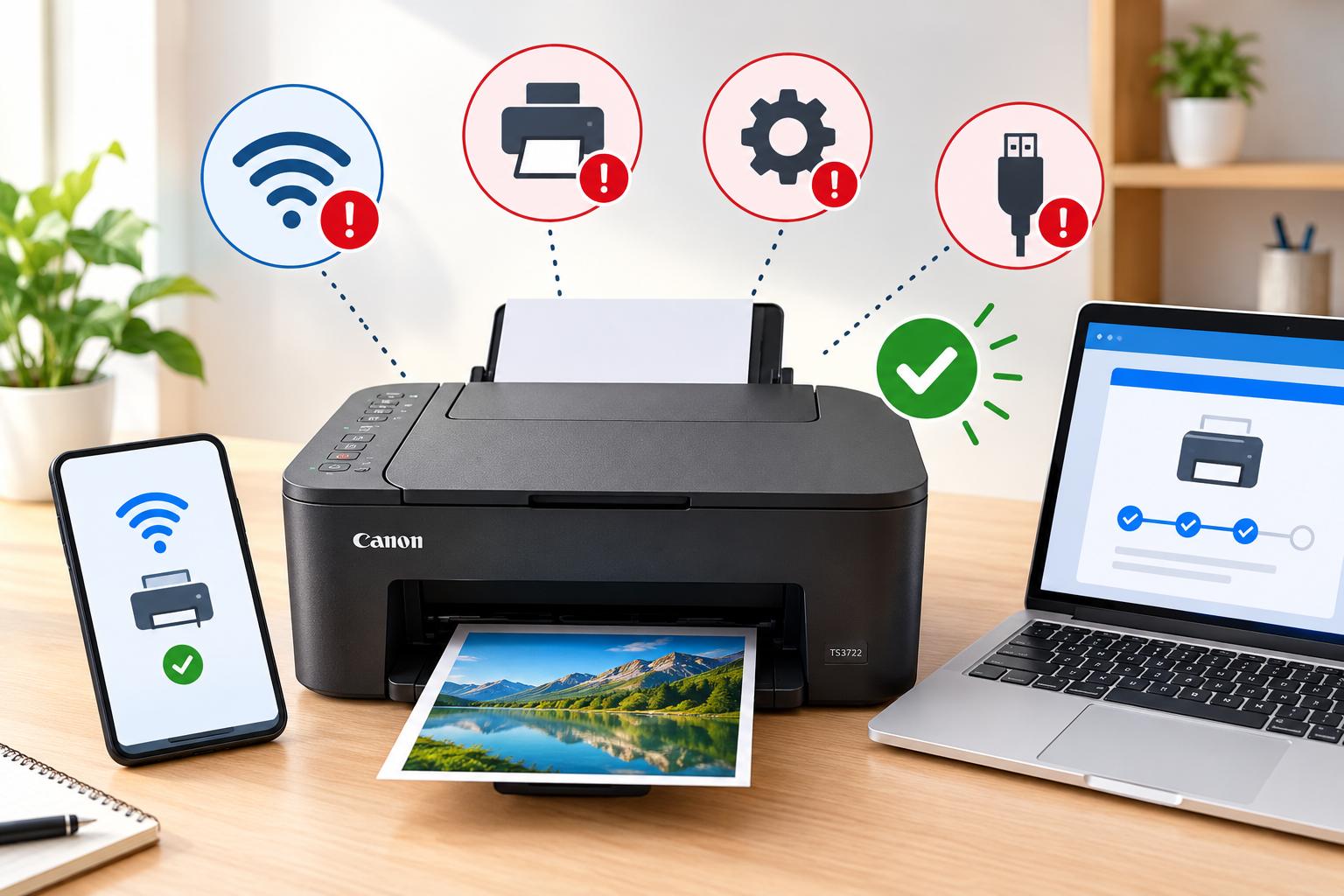
The Canon PIXMA TS3722 is a wireless all-in-one printer designed for everyday printing, scanning, and copying. However, users may sometimes experience problems while connecting the printer to Wi-Fi, installing drivers, connecting to a computer, or completing the initial configuration. These issues can occur because of incorrect wireless settings, outdated software, network compatibility, or an incomplete…
Oct 14, 2026
How to Fix Lorex Doorbell Camera Motion Detection Problems?
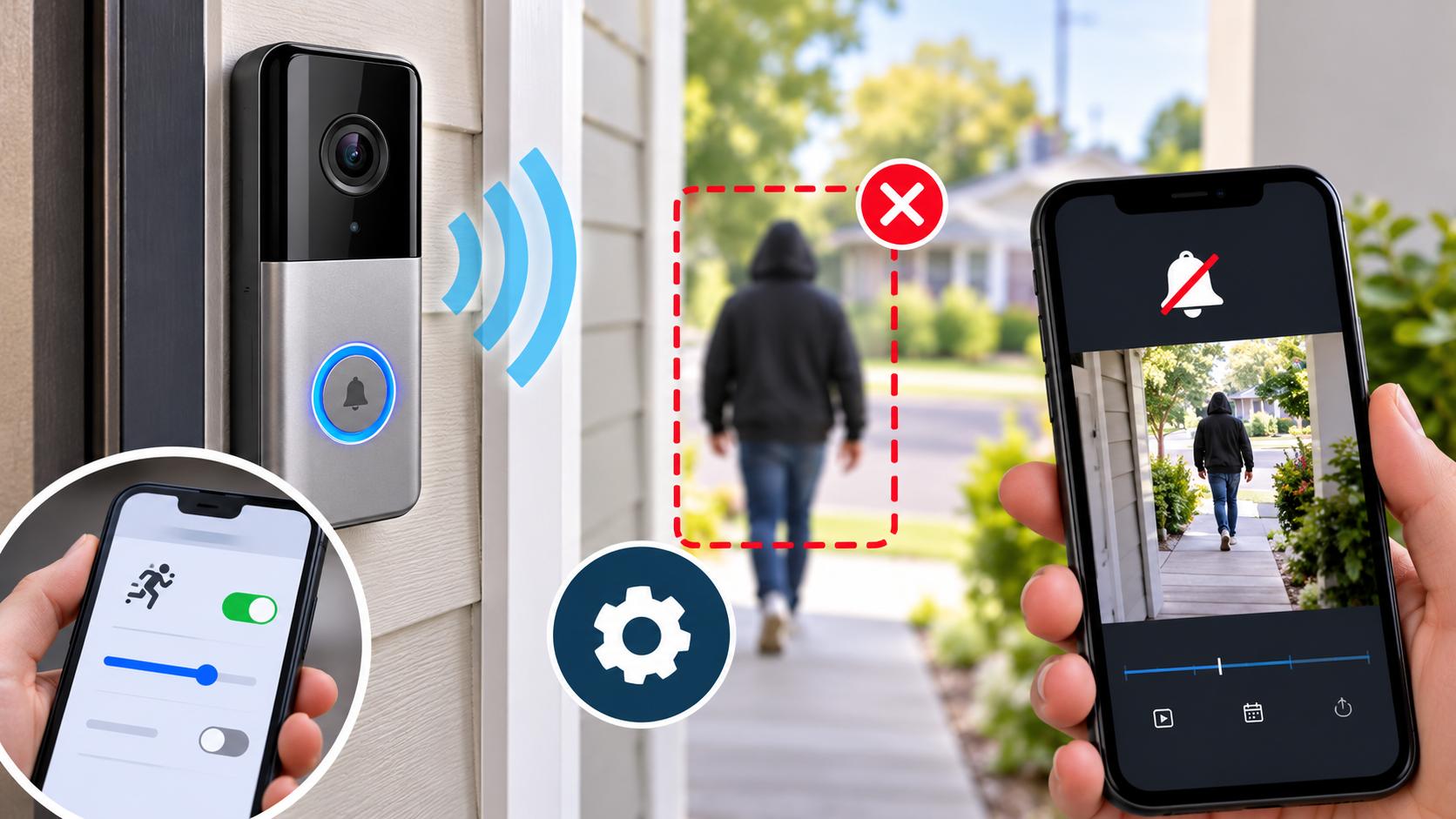
A Lorex Doorbell Camera helps you monitor your front door, detect visitors, and receive alerts when movement occurs. However, motion detection may sometimes stop working, send notifications late, or fail to detect people approaching your home. These problems can happen because of incorrect motion settings, weak Wi-Fi connectivity, outdated firmware, or an unsuitable camera position.…