How to Fix Lorex Doorbell Camera Motion Detection Problems?
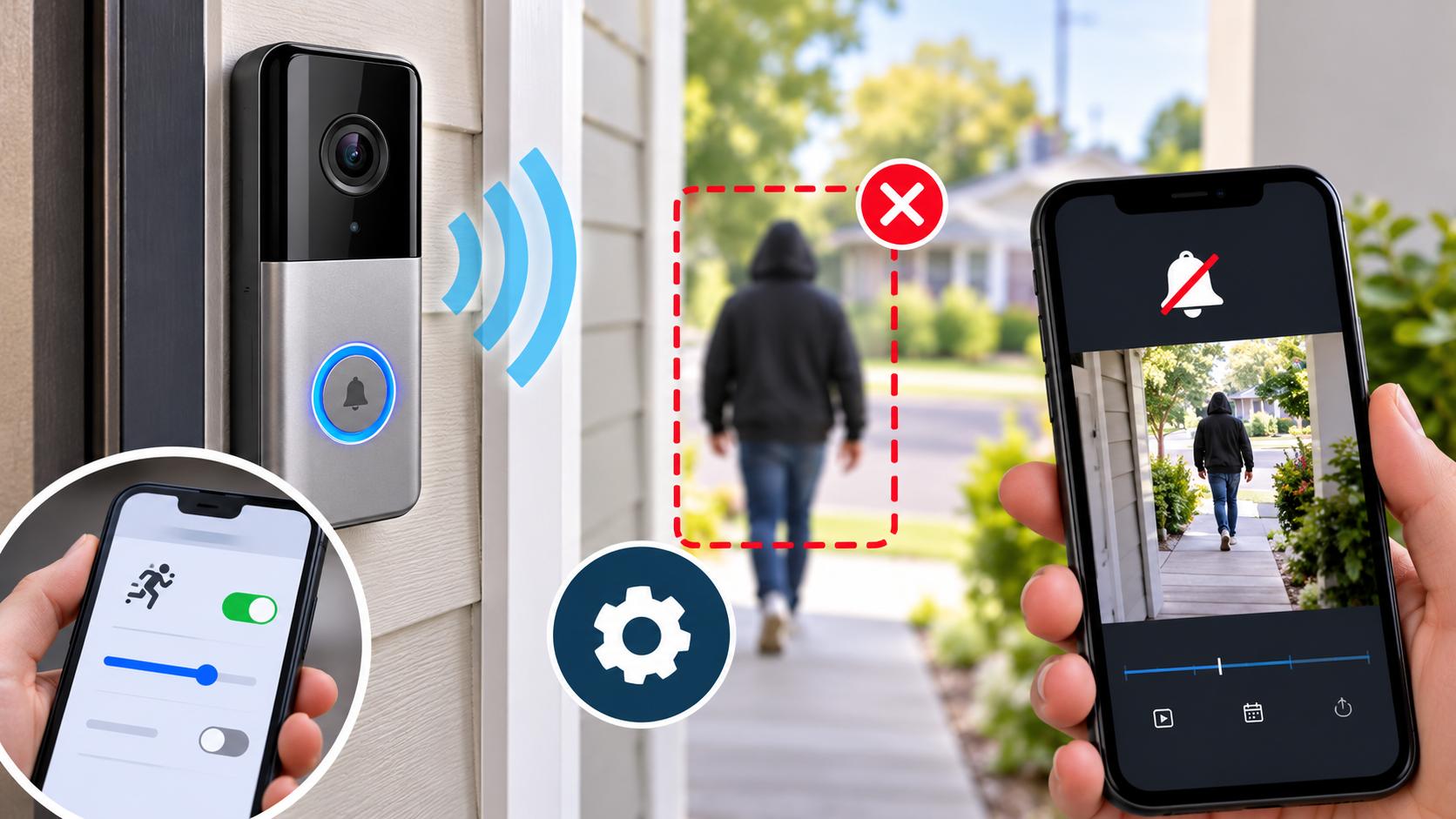
A Lorex Doorbell Camera helps you monitor your front door, detect visitors, and receive alerts when movement occurs. However, motion detection may sometimes stop working, send notifications late, or fail to detect people approaching your home. These problems can happen because of incorrect motion settings, weak Wi-Fi connectivity, outdated firmware, or an unsuitable camera position.
On this page
Table of Contents
On this page
Table of Contents
If your Lorex Doorbell Camera is not detecting motion correctly, you can try several troubleshooting methods to identify and resolve the issue. This guide explains the common causes and practical solutions to help restore motion detection and improve your home security experience.
Why Is My Lorex Doorbell Camera Not Detecting Motion?
Before changing any settings, it is helpful to understand what might be causing the problem. Motion detection issues can occur for several reasons, including:
- Incorrect motion settings: Motion detection or person detection may be disabled in the app.
- Improper camera placement: The camera may not have a clear view of the area you want to monitor.
- Weak Wi-Fi connection: An unstable connection may delay alerts or prevent the app from displaying current camera activity.
- Outdated firmware or app: Older software versions may cause unexpected behavior.
- Incorrect detection zones: The area where movement occurs may be excluded from detection.
- Notification restrictions: Your smartphone may block notifications from the Lorex app.
- Power-related problems: An unstable power supply or installation issue may affect camera performance.
Identifying the likely cause makes it easier to select the right troubleshooting method.
1. Check Motion Detection Settings
The first step is to check whether motion detection is enabled. Sometimes, the feature may be disabled accidentally or configured incorrectly.
Follow these steps:
- Open the Lorex app on your smartphone.
- Select your doorbell camera from the device list.
- Open the camera settings.
- Look for motion detection, detection settings, or a similar option.
- Confirm that motion detection is enabled.
- Review any available person detection or smart detection options.
- Save your changes if required.
The exact menu names may vary depending on your Lorex Doorbell Camera model and app version.
After checking the settings, walk through the monitored area to test whether the camera detects movement. If detection still does not work, continue with the next solution.
2. Adjust Motion Detection Zones
Motion detection zones determine which parts of the camera’s view should trigger detection. If the monitored area is incorrectly configured, the camera may ignore movement near your entrance.
To review the detection zones:
- Open your camera’s settings in the Lorex app.
- Find the motion detection zone or detection area option, if available.
- Review the selected area on the camera preview.
- Make sure the walkway, entrance, or approach to your door is included.
- Remove unnecessary exclusions that may cover the area where people move.
- Save the settings and test detection again.
For example, if visitors approach your door from the left side but the detection zone covers only the center of the image, the camera may not detect them reliably.
Configure the zone according to your camera model’s available features and the area you need to monitor.
3. Check Motion Sensitivity
Motion sensitivity controls how easily the camera responds to movement. If sensitivity is too low, the device may fail to detect visitors. If it is too high, moving tree branches, passing vehicles, or changing light conditions may trigger unwanted alerts.
To adjust sensitivity:
- Open the Lorex app.
- Select your doorbell camera.
- Navigate to the motion or detection settings.
- Find the sensitivity control, if your model provides one.
- Increase or decrease the setting gradually.
- Save the changes and test the camera.
Start with a moderate setting and make small adjustments based on the results. Avoid setting sensitivity to the maximum immediately, as this may generate too many unnecessary notifications.
Keep in mind that available sensitivity controls differ between Lorex models.
4. Check Your Camera Placement
Camera placement can significantly affect motion detection. If the camera points toward a bright light, a busy road, or an area outside the intended monitoring range, it may not detect visitors consistently.
Consider these recommendations:
- Position the camera to provide a clear view of the entrance.
- Avoid placing objects directly in front of the lens.
- Check whether walls, plants, decorations, or other obstacles block the monitored area.
- Adjust the angle if visitors approach from a direction the camera cannot monitor effectively.
- Follow the manufacturer’s installation and mounting recommendations.
Some motion detection technologies respond differently to movement across the field of view. Test the camera from different approach directions to determine whether the placement needs adjustment.
5. Verify Your Wi-Fi Connection
A weak or unstable wireless connection can affect remote viewing, event updates, and notifications. If your Lorex Doorbell Camera frequently disconnects, check the network before changing advanced settings.
Try the following steps:
- Check whether your home Wi-Fi network is working properly.
- Confirm that the doorbell is connected to the correct network.
- Restart your router if other devices are also experiencing connectivity issues.
- Move the router or improve Wi-Fi coverage near the entrance when possible.
- Check the camera’s connection status in the Lorex app.
- Test live view and motion alerts again.
If you are completing the initial lorex camera setup, make sure you follow the instructions for your specific doorbell model and verify that it meets the manufacturer’s network requirements.
Do not assume every Lorex doorbell supports the same Wi-Fi bands or network configurations. Check the model-specific documentation before changing router settings.
6. Enable Notifications on Your Smartphone
Sometimes, the camera detects motion correctly, but your phone does not display an alert. This can happen when app notifications are disabled or restricted by the operating system.
You should also check for firmware updates using the supported app or device interface.
Follow these precautions:
- Confirm the exact camera model before installing an update.
- Use only firmware intended for that model.
- Maintain a stable power supply and network connection during the update.
- Do not interrupt the update process.
- Follow the manufacturer’s instructions if a restart is required afterward.
Firmware updates may improve compatibility or resolve known issues, but they do not guarantee that every motion detection problem will be fixed.
9. Review Power and Installation Issues
If motion detection continues to fail, inspect the doorbell’s power and installation status. Depending on the model, insufficient or unstable power may affect normal operation.
Check the device for warning indicators, repeated restarts, or unexpected disconnections. If your doorbell uses a wired power connection, verify that its installation follows the manufacturer’s specifications.
Do not open the device or handle electrical connections while powered. Contact a qualified installer if you suspect a wiring or transformer issue.
10. When Should You Reset the Camera?
A factory reset may be worth considering if you have checked the settings, network, notifications, and firmware but the issue remains unresolved.
However, a reset can remove existing configuration and require you to configure the camera again. Before proceeding, review the reset instructions for your exact model and make sure you have the information needed to reconnect it.
After resetting, complete the supported lorex camera setup process, enable motion detection, configure the detection zones, and test notifications.
Avoid resetting the camera as your first troubleshooting step because simpler adjustments may solve the problem without requiring a complete reconfiguration.
Frequently Asked Questions
Why does my Lorex Doorbell Camera detect motion but not send alerts?
The camera may detect activity while smartphone notifications are disabled. Check notification permissions, in-app alert settings, and any Focus or battery restrictions on your phone.
Comments
0 comments
No comments yet. Be the first to comment.
Related Articles
Oct 14, 2026
How to Fix Common Canon TS3722 Setup Problems?
The Canon PIXMA TS3722 is a wireless all-in-one printer designed for everyday printing, scanning, and copying. However, users may sometimes experience problems while connecting the printer to Wi-Fi, installing drivers, connecting to a computer, or completing the initial configuration. These issues can occur because of incorrect wireless settings, outdated software, network compatibility, or an incomplete…
Oct 13, 2026
How To Access TP Link Deco Login? A Quick Guide
To access the TP Link Deco login system, use the TP-Link Deco app on your smartphone. Install the app. Sign in with your TP-Link ID. Choose your Deco network to manage WiFi settings and the devices that are connected. You can also examine firmware updates and fix common network problems through the app. What Is…