How to Set Up a TP-Link Deco Mesh WiFi System Easily?
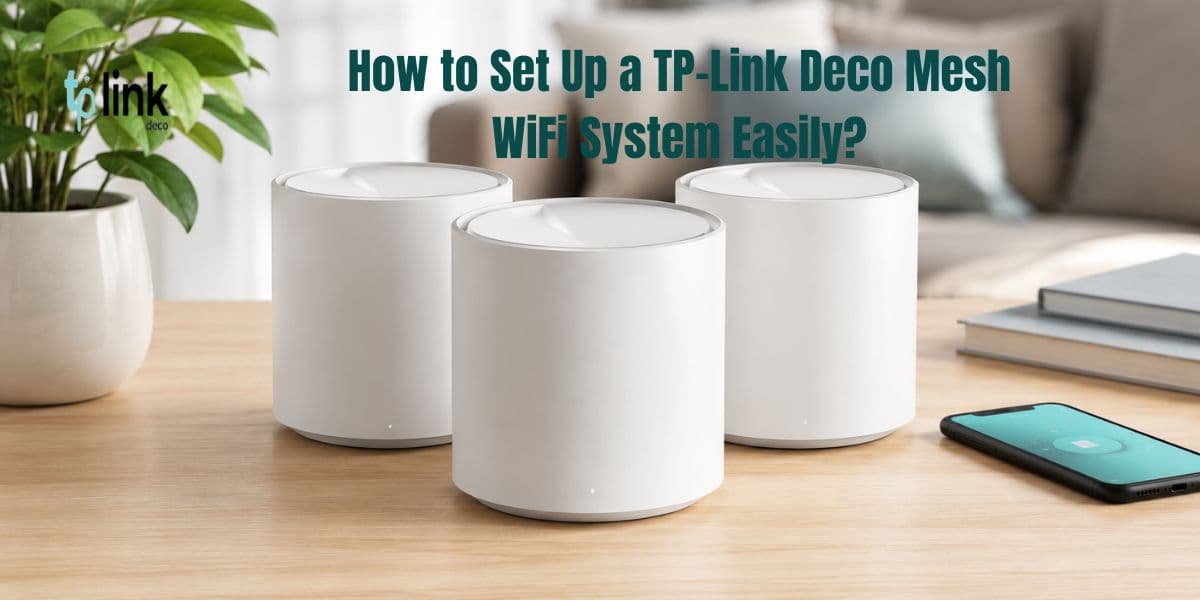
A reliable WiFi connection is basically essential for work, entertainment, online learning, and even smart home devices. If you notice weak signals, or those annoying dead zones in your home, a TP-Link Deco Mesh WiFi System might fix it by improving the overall coverage. Here we’ll go through the tp link deco mesh setup process, and also show how to get to Deco login settings so you can manage the network without too much hassle.
On this page
Table of Contents
On this page
Table of Contents
What Is a TP-Link Deco Mesh WiFi System?
The TP-Link Deco Mesh WiFi System is built to remove WiFi dead zones using several Deco units that cooperate as one single network. Instead of the old approach , where a traditional router is paired with a range extender, Deco builds a seamless mesh connection that automatically routes each device to the strongest available signal.
Also, the tp link deco mesh setup process is pretty straightforward, it can be done right from the Deco mobile application, for both Android and iOS.
Things You’ll Need Before Setup
Before you start the tp link deco mesh setup, confirm you have:
- A TP-Link Deco unit
- A modem with an active internet connection
- A smartphone or tablet
- The Deco mobile app installed
- A TP-Link account ready for Deco login
Once you’ve got those items handy, the setup usually moves faster, and it feels less stressful.
Step 1: Download the Deco App
The first step in the tp link deco mesh setup process is to download the Deco app from the Google Play Store or the Apple App Store.
After that, do the following:
- Open the Deco app.
- Create a TP-Link account if you do not have one already.
- Sign in, using your account credentials.
This account later becomes your Deco login, and it also supports remote network management, so keep it nearby.
Step 2: connect the Main Deco Unit
Ok so now it’s time to actually connect the main Deco device.
- First turn off your modem.
- Then connect the main Deco unit to the modem, using the Ethernet cable that came in the box.
- Power the modem back on.
- Next plug the Deco unit into a power outlet.
- After that just wait until the LED light starts blinking blue.
That blinking blue light means the Deco is ready, for setup and configuration basically.
Step 3: finish the TP Link Deco Mesh setup
Now open the Deco app, and follow what it shows you on screen.
- Tap “Let’s Begin.”
- Pick your Deco model.
- Make sure the LED is blinking blue, before you continue.
- Then choose your internet connection type.
- Create a WiFi name for your network, also called SSID.
- Set a secure WiFi password.
After you do that, the app will handle the rest, it configures everything and brings up your internet connection automatically.
Once it’s done, your tp link deco mesh setup is ready to use.
Step 4: add extra Deco units
If your package had more than one Deco, you can improve coverage by adding additional units into the mesh network.
- Put the second Deco unit about halfway between the main Deco and the spot where the WiFi signal is weaker.
- Plug it into a power source.
- Open the Deco app.
- Select “Add Deco.”
- Then follow the prompts, and you should be good.
Repeat for any other units you have.
This part helps your tp link deco mesh setup deliver stronger WiFi coverage across your whole home, not just near the router area.
How to Access Deco Login
After installation is complete, you might want to manage your network settings using Deco login.
To get to Deco login:
- Open the Deco app.
- Sign in with your TP-Link account.
- Select your network.
- Then you can access things like
- Device management
- Guest network settings
- Parental controls
- Security options
- Firmware updates
The Deco login workflow lets you control your network from anywhere, from your mobile device too, which is kinda convenient.
Common TP Link Deco Mesh setup issues
Even though the whole process is usually straightforward, a few people sometimes run into trouble.
- Deco not connecting to the internet
- Restart the modem, and then restart the Deco unit too.
- Check all cable connections, properly.
- Make sure your ISP service is still active.
- Also, double check if the service itself is actually working on another device.
Can’t complete Deco login
- Confirm your TP-Link account details (username and password).
- If it looks wrong, reset your password.
- Then ensure the Deco app is updated , to the latest version.
- Sometimes app permissions matter too so have a quick look.
Weak signal in certain areas
- Reposition additional Deco units.
- Try to place them away from large metal objects and thick walls.
Comments
0 comments
No comments yet. Be the first to comment.
Related Articles
Sep 21, 2026
Lorex Camera Blinking Red Light? Easy Troubleshooting Guide
If your Lorex Camera Blinking Red Light issue is preventing the camera from connecting or working properly, the light may indicate a power, network, setup, or connection problem. The exact meaning of a red blinking light can vary by Lorex camera model, so check your model’s manual for the specific LED behavior. This guide explains…

Sep 10, 2026
How to Automate Workflows with AI: A Step-by-Step Guide
To automate a workflow with AI, map your current process first, identify where decisions actually get made, then choose a no-code builder, API-based setup, or managed provider based on your team’s technical skill. Add machine learning or generative AI only where judgment is genuinely needed, keep a human checkpoint at the first version, and measure…