Canon Printer Paper Jam Not Clearing? Try These Fixes
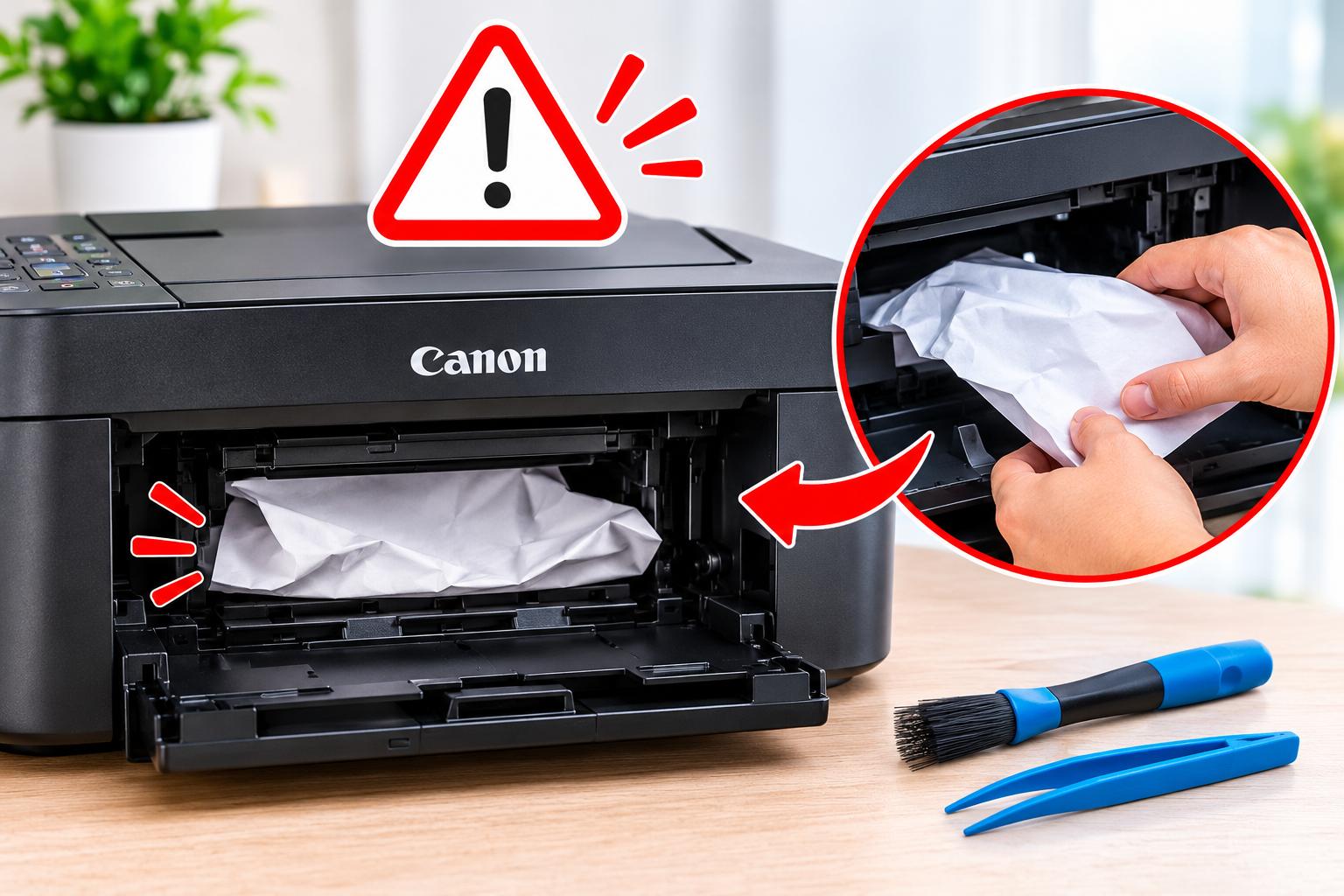
A paper jam is one of the common problems Canon printer users experience while printing documents or photos. Sometimes, paper gets stuck inside the printer, while in other situations, the printer displays a paper jam error even after the visible paper has been removed. A persistent Canon Printer Paper Jam issue can interrupt printing and affect your overall experience.
On this page
Table of Contents
On this page
Table of Contents
This problem may occur because of incorrectly loaded paper, damaged rollers, foreign objects, incorrect paper settings, or internal printer issues. Fortunately, you can try several troubleshooting methods to identify and resolve the problem.
In this guide, we will explain the common causes of paper jams and provide step-by-step solutions to help restore normal printing. These methods are also useful after completing your initial Canon Printer Setup.
Why Is Your Canon Printer Paper Jam Not Clearing?
Before troubleshooting, it is important to understand why your printer continues displaying a paper jam warning.
Some common causes include:
- Stuck Paper: Small pieces of torn paper may remain inside the printer.
- Incorrect Paper Loading: Overloading the input tray or placing paper incorrectly can cause feeding problems.
- Damaged Paper Rollers: Worn or dirty rollers may fail to feed paper properly.
- Wrong Paper Size: Incorrect paper size settings can cause feeding errors.
- Foreign Objects: Dust, staples, and other small objects may block the paper path.
- Duplex Printing Issues: Paper can become stuck in the rear tray or duplexer during double-sided printing.
Identifying the actual cause can help you select the appropriate solution.
1. Turn Off Your Canon Printer
The first step is to turn off your printer before removing stuck paper. This helps prevent accidental movement of internal components while troubleshooting.
Follow these steps:
- Press the power button to turn off your Canon printer.
- Disconnect the power cable from the electrical outlet.
- Wait for a short time before inspecting the printer.
- Open the appropriate access covers.
- Check the paper path for visible obstructions.
Always follow your printer’s safety instructions. Avoid touching hot internal components or forcing any moving parts.
2. Remove the Jammed Paper Carefully
One of the most effective ways to resolve a Canon Printer Paper Jam is to remove the stuck paper correctly.
Follow these instructions:
- Open the front or rear access cover, depending on your printer model.
- Look for paper stuck inside the feeding mechanism.
- Hold the paper firmly with both hands.
- Pull it slowly in the direction recommended in your printer manual.
- Check for small torn pieces left inside.
- Close all access covers securely.
Avoid pulling paper forcefully because it may damage internal rollers or leave additional pieces behind.
If you cannot reach the paper safely, refer to the model-specific Canon instructions.
3. Check the Paper Input Tray
Incorrectly loaded paper can cause repeated feeding problems. Even if there is no visible obstruction, the printer may continue displaying a paper jam error.
To check the input tray:
- Remove the paper from the tray.
- Check whether the sheets are folded, curled, or damaged.
- Arrange the paper into a neat stack.
- Adjust the paper guides to match the paper size.
- Avoid placing more sheets than the tray supports.
- Reload the paper and close the tray properly.
Use supported paper types and sizes to prevent feeding problems.
4. Inspect the Paper Feed Rollers
Paper feed rollers help move sheets through the printer. Dust, paper residue, or worn rollers can prevent proper feeding.
Try these steps:
- Turn off the printer and disconnect its power cable.
- Locate the accessible paper feed rollers.
- Check for visible dust or paper residue.
- Clean accessible rollers using a soft, lint-free cloth slightly dampened with water, following Canon’s cleaning instructions.
- Allow the rollers to dry completely.
- Reconnect the printer and test printing.
Do not use excessive water or harsh cleaning chemicals. If the rollers are damaged or worn, professional servicing may be necessary.
5. Check the Rear Paper Tray and Output Area
Sometimes, paper gets stuck in the rear tray or output area instead of the main paper path. This can make the Canon Printer Paper Jam warning difficult to clear.
Follow these steps:
- Inspect the rear paper feed area.
- Check the output tray for stuck sheets.
- Remove visible paper carefully.
- Look for small torn pieces near the rollers.
- Make sure the output tray is positioned correctly.
If your printer has a rear access panel, open it according to the manufacturer’s instructions and inspect the paper path.
6. Check for Foreign Objects Inside the Printer
Small objects can block the paper feeding mechanism and cause repeated paper jam errors.
Common obstructions include:
- Torn paper pieces
- Paper clips
- Staples
- Dust and debris
- Labels or adhesive residue
Open the accessible printer compartments and inspect them carefully.
If you find an object that cannot be removed safely, avoid using sharp tools. Contact Canon support or a qualified technician for assistance.
7. Verify Paper Size and Print Settings
Incorrect printing preferences can also contribute to paper feeding problems.
Depending on your model, available options may include:
- Roller Cleaning
- Bottom Plate Cleaning
- Print Head Cleaning
- Printer Status Check
To access maintenance options:
- Open the Canon printer utility on your computer.
- Select your connected printer.
- Open the Maintenance section.
- Choose the appropriate cleaning option.
- Follow the on-screen instructions.
Use roller cleaning when supported and relevant to your model. Print head cleaning generally does not resolve physical paper jams.
10. Recheck Your Canon Printer Setup
If the paper jam error continues after troubleshooting, verify that your printer is configured correctly.
A proper Canon Printer Setup helps ensure that your computer communicates with the printer and uses compatible printing preferences.
Check the following:
- Confirm that your Canon printer is powered on.
- Verify the USB or WiFi connection.
- Make sure the correct printer is selected on your computer.
- Check that the appropriate Canon printer driver is installed.
- Confirm the paper size and type settings.
- Print a test page to check the printer’s functionality.
If the printer continues showing a paper jam warning despite having a clear paper path, it may require further inspection.
Frequently Asked Questions (FAQs)
1. Why does my Canon printer show a paper jam when there is no paper stuck?
Small torn paper pieces, dirty rollers, or a faulty paper sensor may cause the printer to display a paper jam warning even when no visible paper is present.
2. How do I clear a paper jam error on my Canon printer?
Turn off the printer, inspect the paper path, carefully remove stuck paper, check the rollers, and restart the device.
3. Can overloaded paper trays cause Canon printer paper jams?
Yes. Loading more paper than the tray supports can cause multiple sheets to feed together or become stuck.
4. Why does my Canon printer keep jamming paper?
Comments
0 comments
No comments yet. Be the first to comment.
Related Articles
Nov 13, 2026
Reset Lorex Camera Not Working? Try These Solutions
Lorex security cameras are designed to provide reliable home and business surveillance. However, you may sometimes experience problems such as connection failures, offline status, login errors, or cameras not responding. In these situations, resetting the device can help resolve temporary software and configuration issues. If you are trying to Reset Lorex Camera but the reset…
Oct 14, 2026
How to Fix Common Canon TS3722 Setup Problems?
The Canon PIXMA TS3722 is a wireless all-in-one printer designed for everyday printing, scanning, and copying. However, users may sometimes experience problems while connecting the printer to Wi-Fi, installing drivers, connecting to a computer, or completing the initial configuration. These issues can occur because of incorrect wireless settings, outdated software, network compatibility, or an incomplete…