Installation Guidance For Linksys RE6300 Range Extender
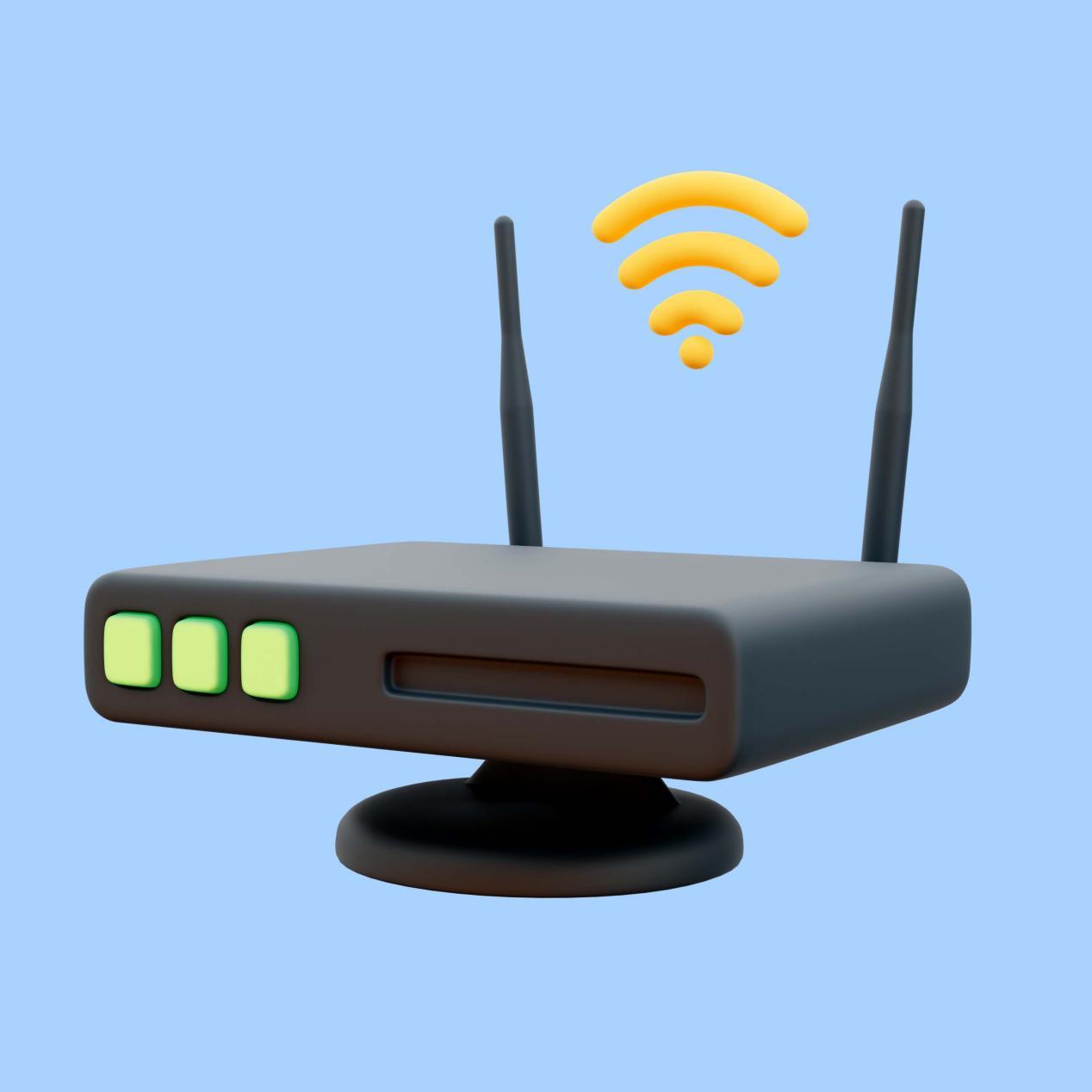
Are you looking forward to strengthening the existing wifi signals or want to get rid of wifi dead spots? No matter what the scenario is, the dual band RE6300 range extender from Linksys can solve all the connectivity issues. After successful Linksys RE6300 setup, you’ll no longer face the problem of slow wifi speeds, dead spots, buffering or intermittent connectivity. The range extender delivers fast wifi speeds of upto 750Mbps. It features a WPS button for hassle-free and quick setup. Additionally, there is a smart indicator on its front panel that helps with the installation, placement and also signals if there is any glitch. The RE6300 comes in a simple, direct wall plug design. So it easily blends with the aesthetics of your abode. Thereafter its two external antennas offer wider and dependable connectivity.
On this page
Table of Contents
On this page
Table of Contents
Now to unlock all these features, you have to learn about the Linksys RE6300 setup process. Basically, there are three different methods for the setup that you can follow.
Method 1: Installation Via WPS
For installing RE6300 using the WPS button, you require a router with the same feature. The installation steps are as follows:
- Find a power outlet which is closest to the router. Plug in the range extender into it. Press the power button. Now wait for the extender to boot up properly.
- Thereafter, press the WPS button of the host device which is the router. Let its WPS light flicker.
- Now immediately press the wifi protected button of RE6300. The front panel indicator will blink green. This means the function is enabled and the Linksys RE6300 setup process is under progress.
- As the smart indicator of the router and the extender stops flickering and turns stable you can conclude that the setup is done successfully.
- Finally, you just need to reposition the extender. Plug it in a socket which is halfway from the router and halfway from the wifi dead spot. As you power on the device, it will automatically get connected to the router, thus you can start streaming high definition videos or gaming from any nook of the abode.
Method 2: Web Browser Based Setup
The next method for Linksys RE6300 setup requires two major components one is the smart device and second is information of the existing network that is the SSID and the password. The steps for this particular method are as follows:
- Find a middle point between the router and the wifi dead spot. Plug in the extender into it and activate it.
- After the extender boots up, take a smart device. Open its settings and then toggle the wifi.
- Now you’ll have access to all the nearby networks. From the list connect to the network name: Linksys Extender Setup-XXXX.
- Once the devices are paired, launch the web browser. The browser must be compatible. For no hookups with the remaining Linksys RE6300 setup process, you must clear browser’s caches, cookies and history.
- Thereafter, head to the browser’s URL blank. Here fill up
Comments
0 comments
No comments yet. Be the first to comment.
Related Articles
Jun 17, 2026
Air Conditioner Price in Nepal : Complete Buying Guide (Updated)
Nepal’s summers are no longer what they used to be. Temperatures across the Kathmandu Valley, Terai plains, and even mid-hill cities are climbing higher every year, turning air conditioners from an occasional luxury into a year-round necessity. Whether you are cooling a bedroom in Lalitpur, a home office in Pokhara, or a shop floor in […]
Jun 3, 2026
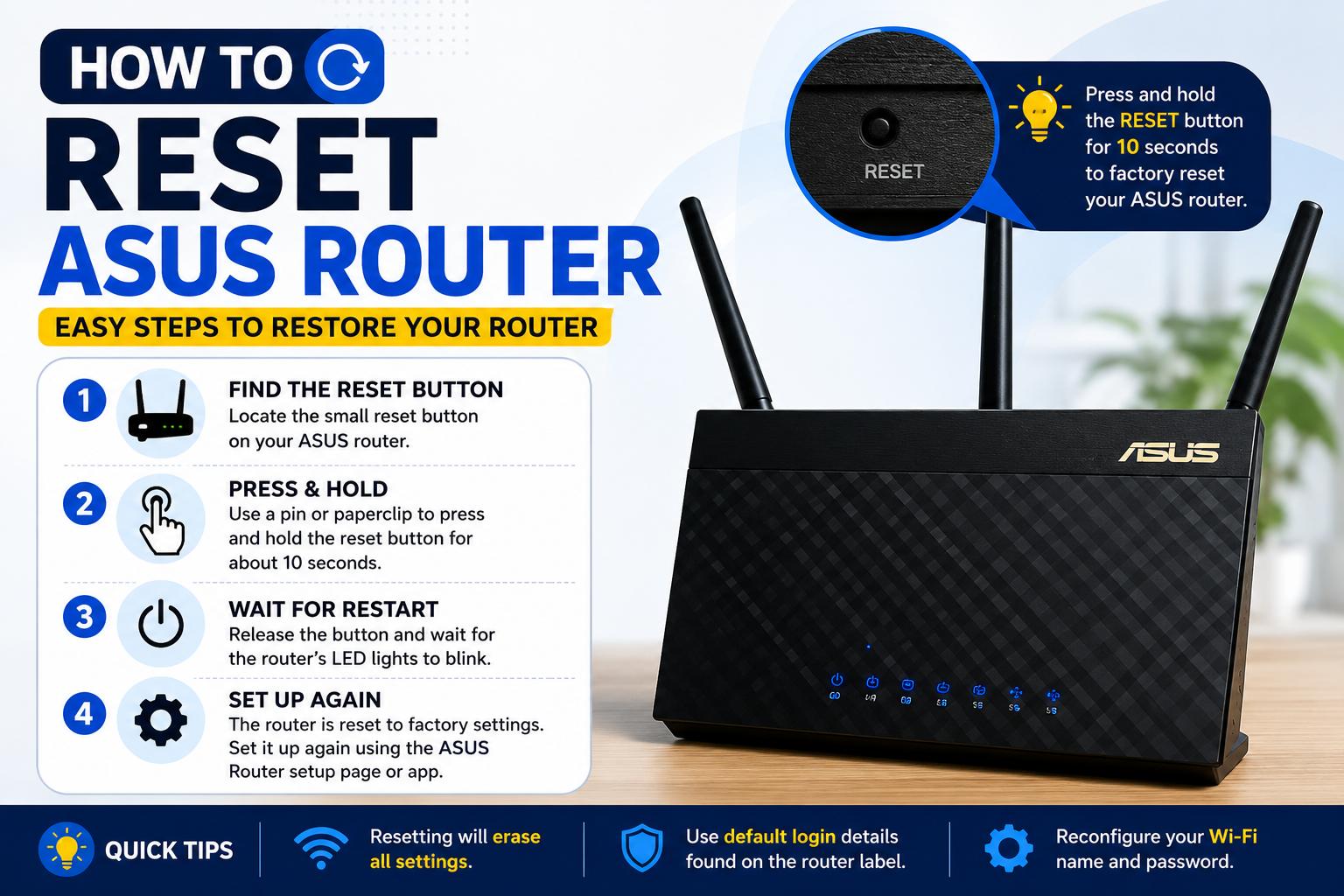
How to Reset Asus Router in Easy Steps (2026 Guide)
Holding down the Reset button for ten to fifteen seconds will cause the Asus router’s power light to flash. Next, use your browser’s Asus router login to finish the configuration once more. Numerous issues can be resolved in minutes with a simple Asus router reset. Many consumers believe that router resets are difficult. However, it’s […]