How to Factory Reset and Re-configure Your Linksys RE7000 Extender?
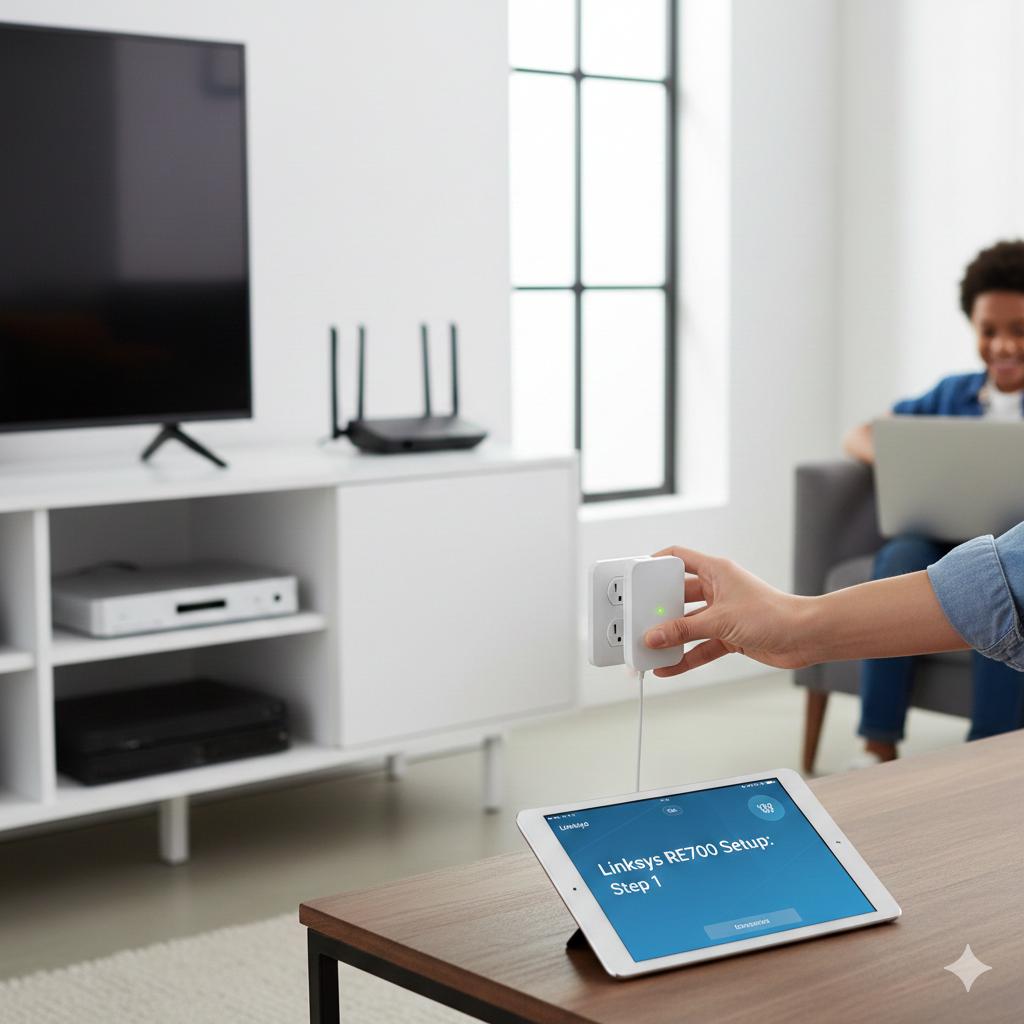
The Linksys RE7000 AC1900 WiFi Range Extender is a potent gadget that may increase wifi coverage in your house or place of business by removing dead zones. However, the extender may occasionally cease functioning correctly as a result of firmware problems, network modifications, or wrong settings. In these situations, most issues can be fixed by doing a factory reset and reconfiguring it. Step-by-step instructions for factory resetting and Linksys RE7000 Setup are provided in this article.
On this page
Table of Contents
On this page
Table of Contents
When Is It Time to Reset Linksys RE7000?
Your extender might need to be reset if:
- Your WiFi or router password has changed.
- The extender keeps disconnecting.
- The extender dashboard is not accessible.
- You wish to start over and tweak it.
- You can’t remember your login information.
A factory reset allows for a new Linksys RE7000 setup by erasing any custom settings and returning the device to its original condition.
How to Factory Reset the Linksys RE7000 Extender
To reset the Linksys Re7000 and restore factory settings, carefully follow these steps:
Turn the Extender on
- Make sure your Linksys RE7000 is turned on before plugging it into a power outlet. Hold off until the power LED solidifies.
Find the Reset Knob
- There is a tiny reset hole marked “Reset” on the side or bottom of the extender.
Hold down the Reset knob.
- Press and hold the reset knob for ten to fifteen seconds using a paper clip or pin.
Let Go and Wait
- When the LED begins to blink, let go of the knob. The extender will restart on its own. It might take several minutes to complete this operation.
- Your extender will revert to factory default settings when the reset is ended, making it suitable for reconfiguration.
How to Set Up Your Linksys RE7000 Extender Again
To connect the Linksys extender to your WiFi network once it has been reset, you must repeat the setup process.
Method 1: Web browser setup (recommended)
Link Your Device
- Attach your PC or smartphone to the Linksys_Extender_Setup default WiFi network of the extender.
Launch a web browser
- Open browser and enter extender.linksys.com.
Launch the Setup Wizard
- After selecting “Start Setup,” adhere to the on-screen directions.
Choose Your WiFi Network
- Enter the WiFi password after selecting the WiFi network associated with your primary router from the list.
Finish the setup
- Wait for the confirmation message after connecting. The Linksys RE7000 extender has been set up.
Method 2: linksys extender setup WPS (Optional)
If WPS is supported by your router:
- On your router, press the WPS knob.
- Press the Linksys RE7000 extender’s WPS knob within two minutes.
- An efficacious connection will be shown by the LED turning solid.
Top Placement Advice for Maximum Efficiency
- Position the extender midway between locations with poor signal strength and your router.
- Keep it away from metal items, thick walls, and electronics.
- Make sure the signal LED is strong enough.
- Proper placement ensures stable connectivity and better speed after Linksys RE7000 Setup.
Typical Problems Following Reset and How to Resolve Them
- Extender.linksys.com cannot be accessed: Make sure your gadget is linked to the WiFi network of the extender.
- Slow speed internet: If your internet speed is slow, move the extender nearer to the router.
- Problems logging in: Try using dissimilar browser or removing the cache in your existing one.
Comments
0 comments
No comments yet. Be the first to comment.
Related Articles
Jun 17, 2026
Air Conditioner Price in Nepal : Complete Buying Guide (Updated)
Nepal’s summers are no longer what they used to be. Temperatures across the Kathmandu Valley, Terai plains, and even mid-hill cities are climbing higher every year, turning air conditioners from an occasional luxury into a year-round necessity. Whether you are cooling a bedroom in Lalitpur, a home office in Pokhara, or a shop floor in […]
Jun 3, 2026
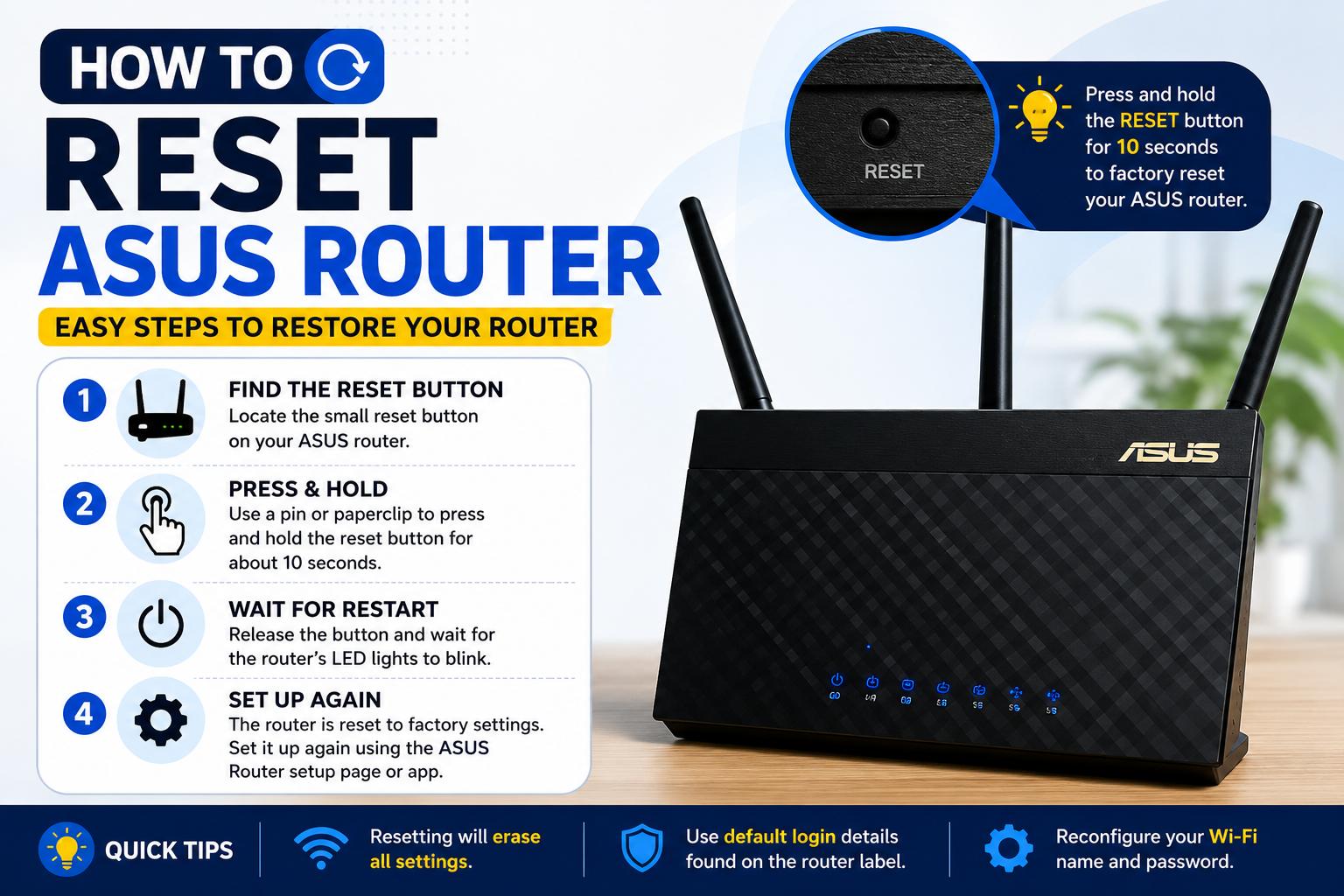
How to Reset Asus Router in Easy Steps (2026 Guide)
Holding down the Reset button for ten to fifteen seconds will cause the Asus router’s power light to flash. Next, use your browser’s Asus router login to finish the configuration once more. Numerous issues can be resolved in minutes with a simple Asus router reset. Many consumers believe that router resets are difficult. However, it’s […]